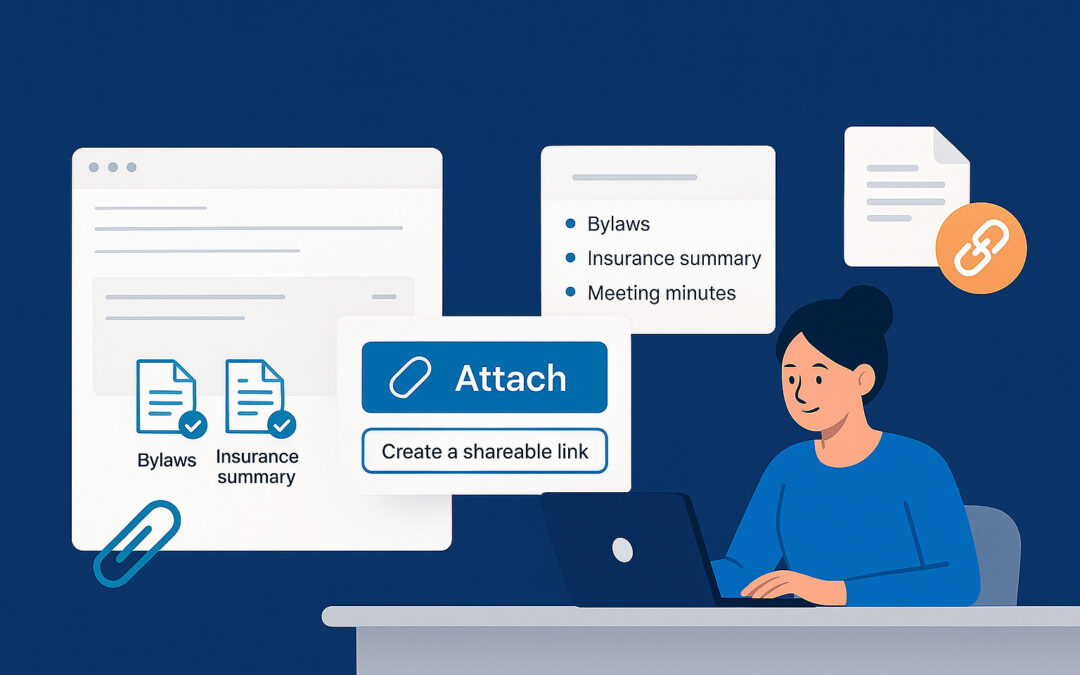
Easily attach related documents to emails, share large files with instant links, and enjoy improved admin tools and a redesigned Properties listing—all built to streamline your workflow.
We're excited to announce the latest updates to Unicli, designed to enhance your experience. These new features aim to streamline your workflow, improve efficiency, and provide you with more insightful data at your fingertips.One-Click Reply from Outlook Ribbon...
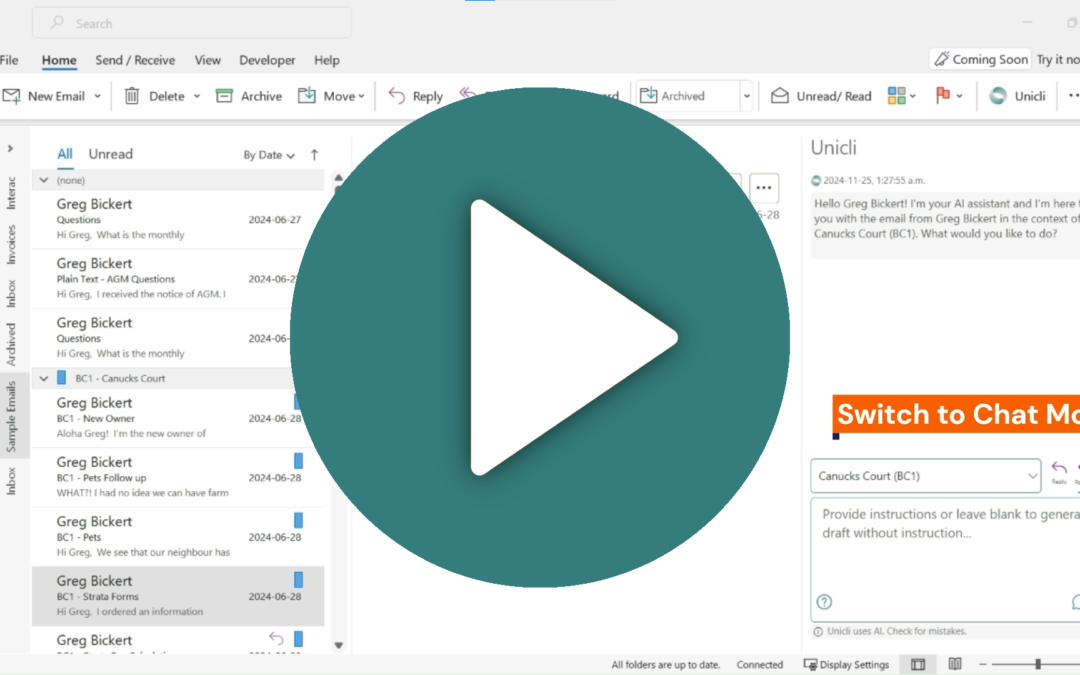
Unicli defaults to either ReplyAll or Compose mode, and it's easy to forget to switch modes, leading to unintended email drafts. Mind The Mode To ensure Unicli performs as desired, always check the mode before drafting. Are you replying, composing, or chatting? Here's...
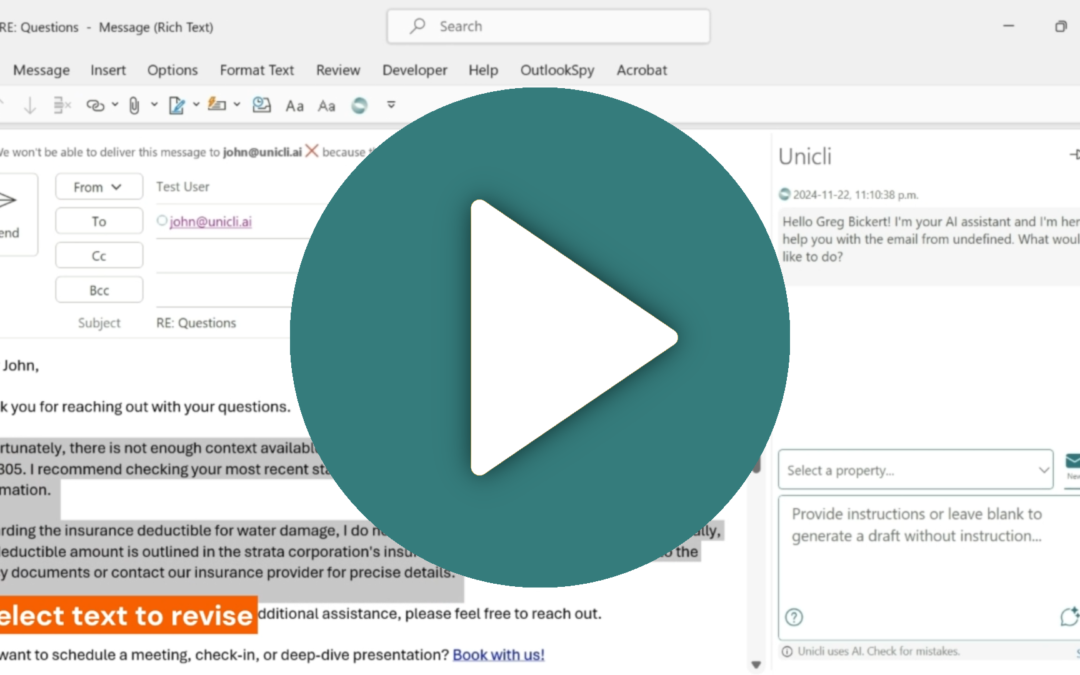
Revising text in a draft email or Word document is easy with Unicli. Step 1. Select the text to revise. Step 2. Provide instructions or additional context to use in the revision. Step 3. Click draft to redraft the selection. Watch this video for a short demonstration...
To ensure that your emails in Outlook use your preferred font settings, follow these steps. This will update the fonts and other styles settings that you can quickly apply to your messages using the Styles list and Unicli for Outlook will also use when inserting text...