
DOWNLOAD:
Example Strata Records Folder Structure
By Greg Bickert, Co-founder of Unicli and Managing Broker, Inspire Property Management
I’ve managed strata records for a long time, and one thing I’ve learned is that a good filing system doesn’t need to be complicated.
The best systems are simple enough to use consistently, easy to maintain, and predictable enough that you don’t have to think too much about where every document belongs.
That has become even more important as we’ve started making more records available for purchase through Unicli. A simple file structure makes it easier to manage records and easier to know which records should be available.
Here are the basic principles I use at Inspire.
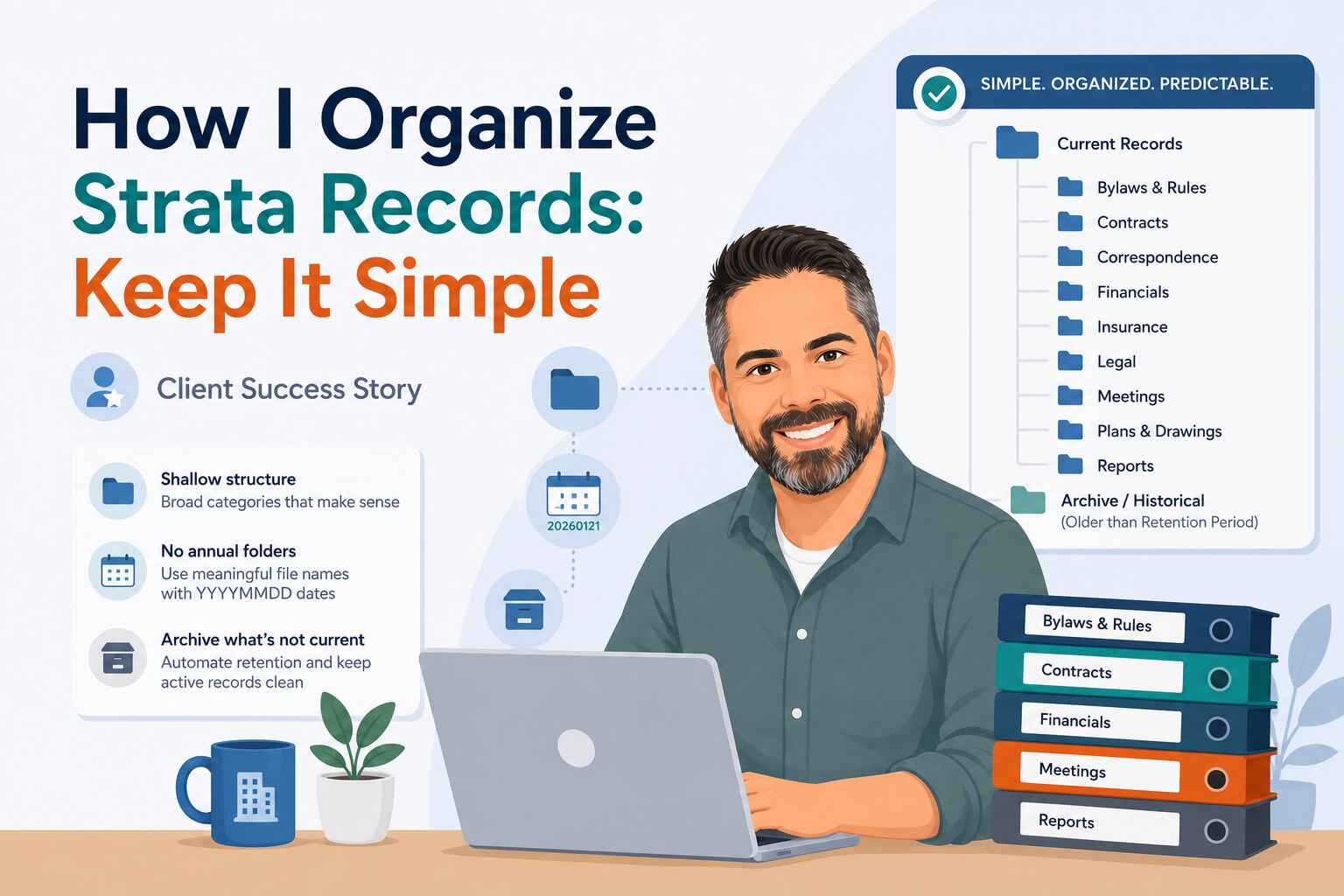
Keep the folder structure shallow
I organize records around broad, recognizable categories rather than creating a folder for every conceivable type of document.
For example, under Contracts, I don’t create separate folders for janitorial, landscaping, elevator, security and every other service. Most strata corporations would have only a few documents in each, some folders would be empty, and there can be uncertainty about where a particular contract belongs.
Instead, I simply use:
Contracts
› Historical (Non-Current)
Current contracts stay in the main Contracts folder. When a contract is no longer current, it moves to the historical folder.
For a very large community with a genuinely large collection of contracts, a few broader categories such as Building Services, Professional Services or Maintenance might make sense. But I would still avoid creating a folder for every individual service.
There is another practical reason I prefer a shallow structure: file path limits. I use SharePoint because it is included with our Microsoft 365 licensing and it is a familiar platform for me and my staff. Deeply nested folders, combined with long folder and file names, can eventually create path-length problems. Microsoft currently documents a 400-character limit for paths in OneDrive and SharePoint, while Windows File Explorer and Office desktop applications have a more restrictive 260-character limit.
So keeping the structure shallow isn’t just about making the filing system easier to understand and maintain. It also leaves more room for meaningful folder and file names without running into technical limitations.
[ Microsoft: What are the file path length limits? ]
If a folder doesn’t solve a real problem, I don’t create it.
Don’t create annual folders
I also avoid creating new folders every year.
It might seem logical to organize records into folders such as 2025, 2026, 2027 and so on, but this creates an ongoing maintenance task without necessarily making the records easier to find.
Someone has to create the new folder every January, decide what belongs there and, if those folders are being made available through Unicli, remember to add them there as well.
I’d rather have a consistent structure and use meaningful file names to identify the document and its date. At Inspire, I use the YYYYMMDD date format in filenames, which means records always sort chronologically—even when a file goes back to the 1900s. YYYY-MM-DD would work just as well and is a little easier to read. We’re actually discussing that change at my office now that filenames are directly visible to requestors through Unicli.
The calendar shouldn’t dictate the filing system.
Use broad categories and archive what is no longer current
I generally organize records around the broad categories already established by the Strata Property Act and its Regulations. This makes sense not only because these are the types of records strata corporations are generally required to maintain, but also because records within many of these categories are subject to the same or similar retention requirements.
For example:
| › Bylaws & Rules › Contracts › Correspondence › Financials › Insurance › Legal › Meetings › Plans & Drawings › Reports |
Not every category is based strictly on statutory retention periods. Some are simply logical groupings. Reports, for example, can include documents with different retention requirements, but keeping them together makes them easier to find and manage.
Some categories also benefit from further subdivision. Financial records, for example, can reasonably be separated into budgets, monthly reports and year-end statements. This makes it easier to identify the different types of records and determine which should be available when copies are requested.
But I try to avoid subdividing simply because I can. The goal is to create useful categories, not to create a folder for every possible type of record.
The question I ask is: Will this make the records meaningfully easier to find or manage?
If not, I leave them together.
The other important distinction is between current and historical records. Current records remain in the main folder. When a document is no longer current, or has passed its applicable retention period, it moves to an Archive or Historical folder.
At Inspire, our consistent file-naming protocol and predictable date format make this easy to automate. I created a simple script that runs nightly and moves files into the appropriate historical folder once they reach the end of their applicable retention period.
For example, our meeting minutes folders have an archive folder called Historical (Older than 6 Years). Each night, the script checks the minutes and automatically moves anything older than six years. I don’t have to remember to do it or manually review the records each year.
This keeps the active records easy to identify and means that when I make records available through Unicli, the current records I want available are already separated from the historical records.
Make the file name do some of the work
I also try to make the file itself meaningful rather than relying on increasingly specific folders.
For example, a contract might simply live in the Contracts folder with a file name such as:
📄EPS12345 CON 20260121 – ABC Elevators – Maintenance Agreement
The folder tells me the broad category. The file name tells me what the document is and when it was created or received.
I’ve used a consistent file-naming protocol at Inspire for many years. The important thing isn’t the exact format, but that the convention is predictable and used consistently. That makes files easier to sort, search and identify without creating additional folders to provide the same information.
For me, a good filename is part of the filing system. The folders provide the structure; the filename provides the detail.
Making records available through Unicli
This simple approach has also made it easier for us to make more records available for purchase through Unicli.
One thing I particularly like is that I don’t need to prescribe how managers organize their working files. Some managers keep Word and Excel working documents in the same folders as final PDF records. Others use separate draft or working folders. Both approaches can work.
Unicli only makes the final PDF records available for purchase, so managers don’t have to reorganize their existing file structure simply to adopt the system. This has made adoption easier because they can continue organizing files in whatever way works best for them.
For me, the important distinction is simply that the current records I want to make available are in the appropriate folders and historical records have been moved out. Unicli works with that structure rather than requiring a separate filing system for record sales.
Interestingly, I’ve also noticed that when we make more categories of records available, and make records available for a longer period, people tend to purchase more records. Because Unicli’s convenience fee is lower than the platform we used previously, the additional records have only resulted in a modest increase in the total purchase price.
That is the subject of a separate article about what I discovered after separating council meeting minutes from general meeting minutes and giving requestors the ability to choose exactly which records they wanted.
[ Read: More Records, Less Work, Better Choices → ]
My example folder structure
For example, this is roughly what my structure looks like (the Archive/Historical folders are not shown below):
Records
› Alteration Agreements
Bylaws & Rules
› Bylaws — Available for sale on Unicli
› Rules — Available for sale on Unicli
Contracts
Correspondence
Financials
› Budgets — Available for sale on Unicli
› Financials – Council Only
› Financials – General Ledgers
› Financials – Monthly Reports — Available for sale on Unicli
› Financials – Yearend Statements — Available for sale on Unicli
Forms
› SPA Form A – Proxy Appointment
› SPA Form B – Information Certificate
› SPA Form C – Mortgagee’s Request for Notification
› SPA Form F – Certificate of Payment
Insurance
› Insurance Appraisals — Available for sale on Unicli
› Insurance Policies — Available for sale on Unicli
Legal
› Disclosure Statement — Available for sale on Unicli
› Judgments & Orders — Available for sale on Unicli
› Privileged Legal Advice
› Proceedings – BC Civil Resolution Tribunal — Available for sale on Unicli
› Proceedings – BC Court of Appeal — Available for sale on Unicli
› Proceedings – BC Human Rights Tribunal — Available for sale on Unicli
› Proceedings – BC Provincial Court — Available for sale on Unicli
› Proceedings – BC Supreme Court — Available for sale on Unicli
› Title Searches
Lists
› List of Assignments of Rights to Tenants
› List of Council Members
› List of Mortgagees
› List of Owners
› List of Tenants
Meetings
› Meeting Agendas – Council Only
› Meeting Minutes – Council Meetings — Available for sale on Unicli
› Meeting Minutes – General Meetings — Available for sale on Unicli
› Meeting Notices – General Meetings — Available for sale on Unicli
Plans & Drawings
› Building Plans — Available for sale on Unicli
› Easements — Available for sale on Unicli
› Fire Safety Plan — Available for sale on Unicli
› Other Plans — Available for sale on Unicli
› Statutory Right of Way — Available for sale on Unicli
› Strata Plan — Available for sale on Unicli
Reports
› Committee — Available for sale on Unicli
› Routine Maintenance
› Fire Department
› Fire System
› WorkSafeBC
› Depreciation Reports — Available for sale on Unicli
› Electrical Planning Reports — Available for sale on Unicli
› Major Items Reports — Available for sale on Unicli
I don’t suggest that every strata corporation needs exactly this structure. The important thing is the approach: keep the structure simple, keep current records in the main folders, and only create additional folders when they solve a genuine problem.
Changing your filing structure doesn’t have to happen all at once
If you are thinking about adopting a new filing structure, I wouldn’t wait until you’ve reorganized every historical record before putting it into use.
Deploy the new folder structure, make the appropriate folders available through Unicli, and move existing records over as time permits. For the smoothest transition, you can also keep your existing folders available while you reorganize.
From the realtor’s perspective, they do not see the transition happening behind the scenes. Unicli only shows categories and records that actually contain available documents, so they won’t see a collection of empty folders while you build out the new structure.
[ Download my example strata records folder structure (ZIP) → ]
The ZIP contains the folder structure I use at Inspire, including the Historical/Archived folders not shown above. It is intended as a starting point—not a prescription.
Keep it simple
For me, good records management isn’t about creating the most detailed filing system possible. It’s about creating a system that is simple, predictable and easy to maintain.
Keep current records in the main folder. Archive what is no longer current. Use broad categories, and create subfolders only when they solve a genuine problem. Use meaningful file names with a consistent date format—ideally one that sorts chronologically, such as YYYYMMDD or YYYY-MM-DD. Let the folders provide the structure and the filenames provide the detail.
Just to clarify, these are the practices I personally recommend, but they aren’t requirements for using Unicli. Unicli supports many different filing styles, including more detailed folder structures and annual subfolders. If that is how you prefer to organize records, it is fully supported.
My recommendations aren’t really about making Unicli easier to adopt—although that can be a small added benefit—or even about improving profitability after adopting Unicli, which is certainly something I’ve seen at Inspire. They’re primarily about reducing the ongoing work required of staff to maintain accurate, accessible records for their clients.
The simpler the system, the easier it is to maintain—and the easier it becomes to make those records available when someone needs them.